Category: WordPress

  • How WordPress Loads a Page: Complete Loading Sequence

    How WordPress Loads a Page: Complete Loading Sequence

    How WordPress Loads a Page Let Me Be Honest With You…

    For a long time, I was “working” with WordPress… but not really understanding it.

    I could:

    • Build pages
    • Install plugins
    • Even write some PHP code

    But whenever something broke, I had no clue:

    👉 Where exactly is this happening?

    So what did I do?

    • Try random fixes
    • Move code around
    • Refresh 20 times

    And sometimes… it worked.


    The Day Everything Clicked

    One day, instead of searching for a fix, I asked:

    👉 “What actually happens when someone opens my website?”

    That question changed everything.

    Because WordPress is not random.

    👉 It follows a very strict step-by-step process every single time.


    First, Understand This One Line

    Before we go deep, just remember this:

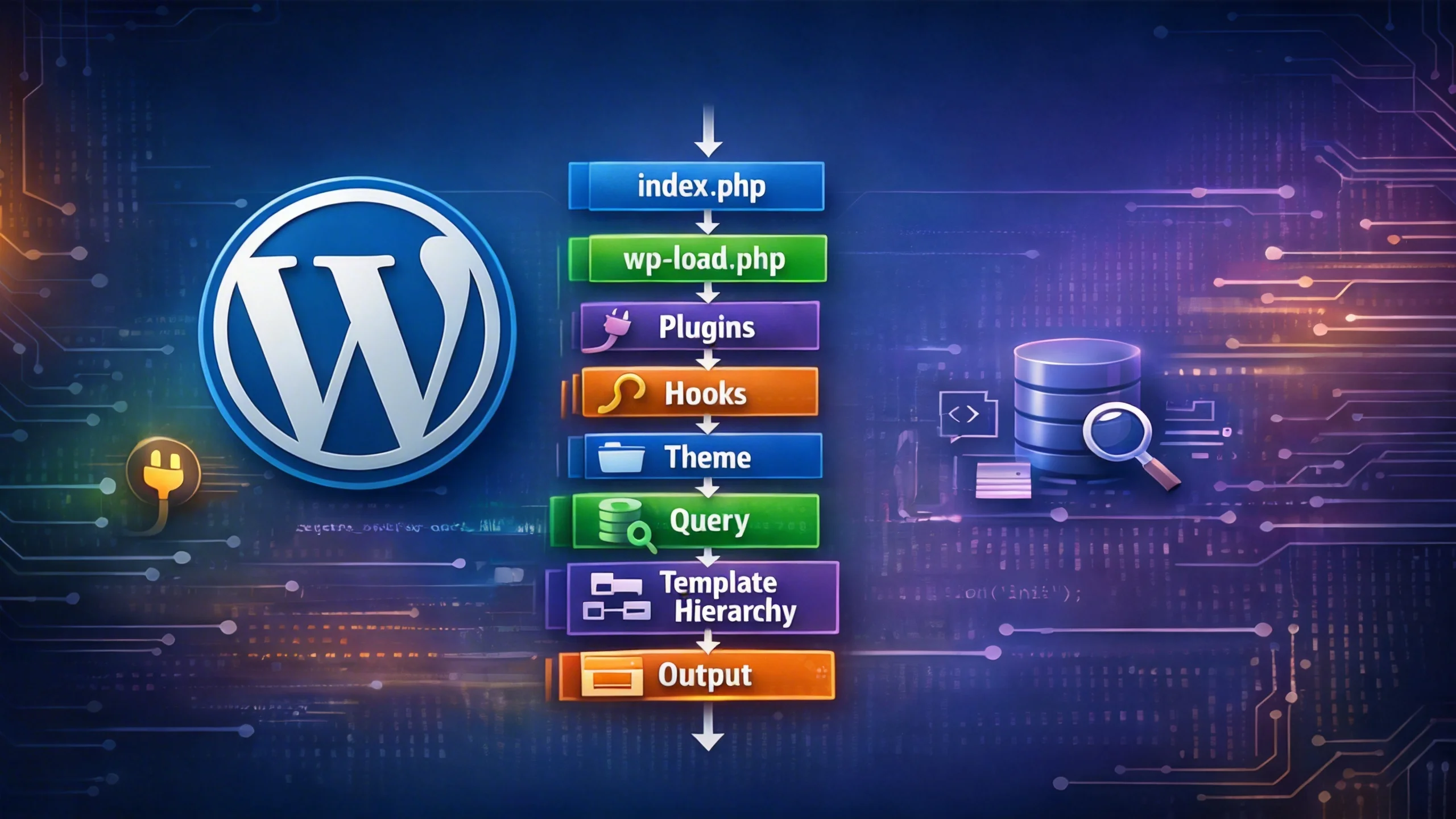
    Request → Load → Plugins → Hooks → Theme → Query → Template → Output

    👉 If you understand this flow, you understand WordPress.

    Now let’s slow it down… step by step.


    Step 1: The Entry Point (Where It All Starts)

    Every request begins from one file:

    👉 index.php

    And here’s the funny part…

    👉 It barely does anything.

    define('WP_USE_THEMES', true);
    require __DIR__ . '/wp-blog-header.php';

    What This Means

    It’s basically saying:

    👉 “Hey WordPress… you take control from here.”


    Step 2: WordPress Page Load: Bootstrap Phase

    Now WordPress starts loading itself.

    It goes through:

    wp-blog-header.php
    → wp-load.php
    → wp-config.php
    → wp-settings.php

    Think Like This

    This phase is like:

    👉 Turning on a computer

    • Config loads
    • System prepares
    • Environment gets ready

    Nothing visible yet… but everything is being prepared.


    Step 3: Plugins Load (This Is Where Power Begins)

    Now we enter the most important part.

    Inside wp-settings.php:

    👉 WordPress loads plugins.


    Plugin Loading Order (Very Important)

    1. Must-use plugins
    2. Network plugins
    3. Regular plugins

    Why This Is Powerful

    Because plugins load BEFORE anything you see.

    That means:

    👉 Plugins can control EVERYTHING.


    Real Example (Think Like This)

    Let’s say you install WooCommerce.

    Even before your page loads:

    👉 WooCommerce already:

    • Registers post types
    • Adds hooks
    • Modifies queries

    Simple Analogy

    👉 Plugins = Brain
    👉 Theme = Face

    And brain loads first.


    Step 4: Hooks Start Running (This Is Where You Come In)

    After plugins load:

    👉 WordPress starts firing hooks.


    Important Hooks (Remember These)

    • plugins_loaded
    • init
    • wp_loaded

    Example 1: Register CPT

    add_action('init', function() {
    register_post_type('book', [
    'label' => 'Books',
    'public' => true
    ]);
    });

    👉 Why init?

    Because WordPress is ready, but query hasn’t started yet.


    Example 2: Check Plugin

    add_action('plugins_loaded', 'custom_init');

    function custom_init() {

    // Stop if WooCommerce is not active
    if (!class_exists('WooCommerce')) {
    return;
    }

    // Initialize your integration
    custom_woocommerce_setup();
    }

    function custom_woocommerce_setup() {
    // Add hooks, filters, features here
    }

    👉 Safe place to check dependencies.


    Step 5: Theme Loads (Now UI Comes In)

    Now WordPress loads your theme:

    • functions.php
    • theme setup

    Important Concept

    👉 Plugins decide WHAT
    👉 Theme decides HOW


    Example

    add_action('after_setup_theme', 'custom_theme_setup');

    function custom_theme_setup() {

    // Enable Featured Images (Post Thumbnails)
    add_theme_support('post-thumbnails');
    }

    Step 6: WordPress Understands the Request

    Now WordPress asks:

    👉 “What is this page?”

    • Blog post?
    • Page?
    • Category?

    This is handled by:

    👉 WP_Query


    Real Thinking

    User URL:

    /blog/wordpress-hooks

    WordPress translates it into:

    👉 “Get post where slug = wordpress-hooks”


    Powerful Example: Modify Query

    add_action('pre_get_posts', 'custom_modify_home_query');

    function custom_modify_home_query($query) {

    if (is_admin() || !$query->is_main_query()) {
    return;
    }

    if ($query->is_home()) {
    $query->set('posts_per_page', 5);
    }
    }

    Important

    👉 This runs BEFORE database query

    👉 This is why it’s powerful.


    Step 7: Template Hierarchy (Decision Time)

    Now WordPress knows what to show.

    Next:

    👉 “Which file should I use?”


    Think Like This

    WordPress checks:

    👉 “Do I have this file?”
    👉 “No? Try next one.”


    Example: Single Post

    single-post.php
    → single.php
    → singular.php
    → index.php

    Real Scenario

    You edited single.php

    But nothing changed and that’s confusing

    Why?

    👉 Because WordPress used:

    👉 single-post.php


    Debug Trick

    <?php
    if (current_user_can('administrator')) {
    echo '<p>Template: ' . basename(get_page_template()) . '</p>';
    }
    ?>

    👉 This tells you the exact file being used.


    Step 8: Rendering (Finally!)

    Now WordPress builds the page.


    What Happens

    1. Header loads
    2. Content loop runs
    3. Footer loads

    Example: The Loop

    <?php if (have_posts()) : while (have_posts()) : the_post(); ?>

    <h2><?php the_title(); ?></h2>
    <?php the_content(); ?>

    <?php endwhile; else : ?>

    <p>No content available.</p>

    <?php endif; ?>

    Hooks Here

    • wp_head
    • the_content
    • wp_footer

    Example: Modify Content

    add_filter('the_content', function($content) {

    if (is_single() && is_main_query()) {
    $content .= '<p>Written on ' . get_the_date() . '</p>';
    }

    return $content;
    });


    How WordPress Loads a Page

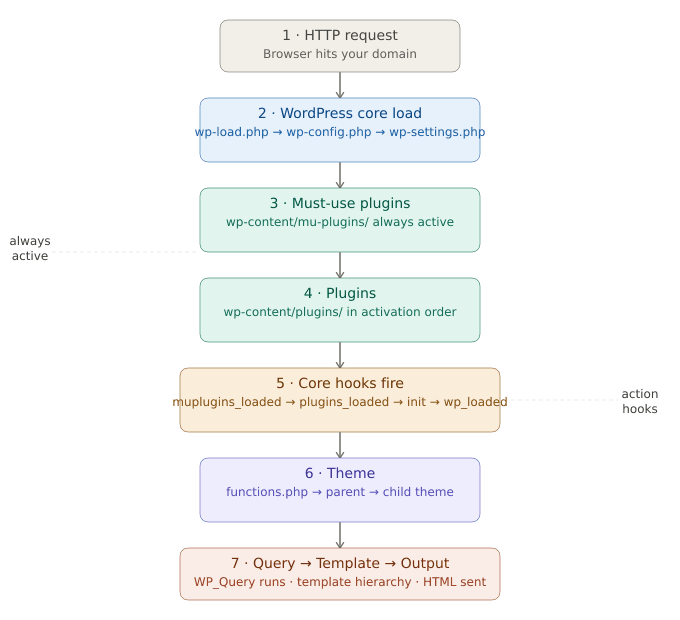
    Full Flow (Now You’ll Never Forget)

    User Request
    → index.php
    → wp-blog-header.php
    → wp-load.php
    → wp-config.php
    → wp-settings.php
    → Load Plugins
    → Fire Hooks
    → Load Theme
    → WP_Query
    → Template Hierarchy
    → Render Page
    → Output HTML

    Common Mistakes (Real Developer Problems)

    • Editing the wrong template file
    • Using the wrong hook
    • Not checking conditions properly
    • Not understanding execution timing

    Pro Developer Mindset

    Before:

    👉 “Why is this not working?”

    After:

    👉 “Where in the WordPress flow is this breaking?”


    Performance Insight (Very Important)

    Bad:

    ❌ Loading scripts on every page
    ❌ Running heavy queries unnecessarily
    ❌ Using too many hooks

    Good:

    if (is_single()) {
    wp_enqueue_script('my-script');
    }

    👉 Load assets only where needed


    Final Thought

    WordPress is not magic.

    👉 It’s a system.

    And once you understand the system:

    👉 You stop guessing
    👉 You start building with confidence

  • 5 Common WordPress Website Issues & How to Fix Them

    5 Common WordPress Website Issues & How to Fix Them

    5 Common WordPress Website Issues & Their Solutions

    WordPress is one of the most powerful and popular website platforms in the world. Millions of businesses, bloggers, and organizations rely on it to build and manage their websites.

    But here’s the truth many people don’t talk about WordPress websites need proper maintenance. Without regular updates and optimization, even a well-built website can start facing problems.

    Sometimes the website becomes slow, sometimes a plugin breaks the layout, and in some cases security issues may even put the entire website at risk.

    The good news is that most WordPress problems are very common and can be fixed easily once you understand the cause.

    Let’s look at five common WordPress website issues and the best ways to solve them.


    1. Slow Website Speed

    Have you ever visited a website that takes forever to load?

    Most people won’t wait. They simply close the page and move on to another website. That means a slow website doesn’t just hurt user experience — it can also affect your search engine rankings and conversions.

    Why it happens

    A WordPress website usually becomes slow because of:

    • Heavy themes with too many features
    • Too many unnecessary plugins
    • Large images that are not optimized
    • Poor quality hosting

    How to fix it

    There are a few simple ways to improve website speed:

    • Use a lightweight and well-optimized theme
    • Compress and convert images to WebP format
    • Install a caching plugin to speed up loading
    • Choose a reliable hosting provider

    Even small improvements in speed can make a big difference in user experience and SEO performance.


    2. Website Hacked or Security Issues

    Security is something many website owners ignore until it’s too late.

    Because WordPress is so popular, hackers often target websites that are not properly secured. A hacked website can lead to malware infections, data loss, and damage to your brand reputation.

    Why it happens

    Most WordPress security problems occur because of:

    • Outdated themes or plugins
    • Weak passwords
    • Lack of proper security protection

    How to fix it

    Protecting your website doesn’t have to be complicated.

    • Always keep WordPress, themes, and plugins updated
    • Use strong passwords for admin accounts
    • Install a reliable WordPress security plugin
    • Take regular backups of your website

    These simple practices can prevent many common security issues.


    3. Plugin Conflicts

    One of the best things about WordPress is its plugin ecosystem. With just a few clicks, you can add powerful features to your website.

    But sometimes plugins don’t work well together. When this happens, you might see broken layouts, errors, or features suddenly stopping working.

    Why it happens

    Plugin conflicts usually happen when:

    • Too many plugins are installed
    • Plugins are outdated
    • Two plugins try to perform the same function

    How to fix it

    • Install only essential plugins
    • Keep plugins updated regularly
    • Test new plugins on a staging environment before using them on the live site

    Keeping your plugin list clean and organized helps keep your website stable.


    4. White Screen of Death

    Few things are more frustrating than opening your website and seeing nothing but a blank white screen.

    This issue is commonly known as the White Screen of Death (WSOD) in WordPress.

    Why it happens

    It usually occurs because of:

    • PHP memory limit issues
    • Plugin or theme errors
    • Code conflicts

    How to fix it

    Here are a few common fixes:

    • Increase the PHP memory limit
    • Disable recently installed plugins
    • Temporarily switch to a default WordPress theme
    • Enable debug mode to find the exact error

    Once the cause is identified, the issue can usually be resolved quickly.


    5. Website Not Ranking on Google

    You may have a beautiful website, but if it doesn’t appear on search engines, people may never find it.

    Many WordPress websites struggle with SEO because the basics are often overlooked.

    Why it happens

    Common SEO mistakes include:

    • Poor keyword targeting
    • Missing meta titles and descriptions
    • Slow website performance
    • Low quality or irregular content

    How to fix it

    • Do proper keyword research before creating content
    • Optimize titles, headings, and meta descriptions
    • Make sure your website is mobile-friendly
    • Publish valuable and consistent content

    SEO takes time, but consistent improvements will gradually increase your visibility on search engines.


    Final Thoughts

    WordPress is an incredibly powerful platform, but like any system, it needs regular care and maintenance.

    When you keep your website updated, optimized, and secure, you avoid many common issues and create a better experience for your visitors.

    Think of it this way:

    A well-maintained website is faster, safer, and more likely to rank well on search engines.

    So don’t just build your WordPress website maintain it regularly to keep it performing at its best.

    Frequently Asked Questions

    Slow websites are usually caused by heavy themes, too many plugins, large images, or poor hosting performance.

    It’s recommended to check for updates regularly and keep your plugins, themes, and WordPress core updated to maintain security and compatibility.

    Plugin conflicts occur when multiple plugins try to control the same functionality or when plugins are incompatible with the current WordPress version.

    Focus on keyword research, optimize on-page SEO elements, improve website speed, and publish high-quality content consistently.

  • WordPress Is Not  Slow. Your Development Is.

    WordPress Is Not Slow. Your Development Is.

    WordPress Is Not Slow.

    WordPress is not slow. People think WordPress is slow because when a website is really slow they blame WordPress away.

    They think WordPress causes a lot of problems like:

    • loading speed
    • Security risks
    • Plugin conflicts
    • scalability
    • Weak search engine optimization

    But when I take a closer look, at these websites I usually find that the problem is something else entirely. WordPress is not the issue. I find this with WordPress every time.


    What I Actually Find During Audits

    In most cases, the real issues are:

    • Too many plugins are installed, even when they are not needed
    • Unused plugins are not removed
    • Plugins are not updated regularly
    • Low-quality plugins are used
    • Heavy themes are used with many features that are not required
    • Extra theme options and demo features are still loaded
    • No caching is set up
    • No CDN is used
    • Images are too large
    • Images are not compressed
    • WebP format is not used
    • Too many fonts are loaded
    • Too many external scripts are added
    • Cheap hosting with slow server response
    • Hosting is not optimized
    • No object caching or server-level caching
    • Random code is added without proper understanding
    • Unnecessary CSS and JavaScript files are loaded
    • CSS and JS are not minified
    • Render-blocking resources are not handled
    • Database is full of unused data No
    • database cleanup or optimization
    • Too many post revisions
    • Spam comments are not removed
    • No lazy loading for images
    • No performance testing before launch
    • No testing after changes
    • Core Web Vitals are not checked
    • Overuse of page builders
    • Deep layouts increase page size
    • Poor mobile optimization
    • No clear development process

    After all these issues, people say:

    “WordPress is slow.”

    No.

    WordPress is not slow.

    Poor development and bad setup make a website slow.


    WordPress Powers Millions of Successful Websites

    WordPress is used by more than 40% of websites.

    • Enterprise-level websites
    • High-traffic blogs
    • WooCommerce stores
    • Company websites
    • SaaS landing pages

    Strong businesses choose strong platforms: WordPress is one of them.

    The difference is simple:

    They build it the right way.


    Performance Depends on Development

    WordPress is a powerful platform.
    But speed depends on how you build the website.

    Here is what really makes WordPress fast:


    1. Clean and Lightweight Theme

    Always use a clean and lightweight theme.
    Avoid heavy multipurpose themes unless you really need them.

    Many themes come with extra features, sliders, animations, and page builders that you may never use.
    But even if you don’t use them, they still load in the background and slow down your website.

    A lightweight or custom-built theme keeps your website fast and efficient.

    It helps to reduce:

    • Unnecessary CSS and JavaScript files
    • Large and complex page structure (DOM size)
    • Too many HTTP requests
    • Extra code that is never used

    Clean code is easier to manage, easier to update, and faster to load.
    A simple and clean theme is the first step to a fast WordPress website.


    2. Fewer Plugins, Better Performance

    More plugins do not mean more features.
    In many cases, more plugins only make the website slow and hard to manage.

    Every plugin you install adds extra load to your website.

    Each plugin can:

    Each plugin:

    • Add more database queries
    • Load extra CSS and JavaScript files
    • Increase page size and load time
    • Create conflicts with other plugins
    • Increase security risks

    Many websites have plugins that are not even used anymore, but they still run in the background.

    This affects both performance and stability.

    Always install only the plugins you really need.
    Remove unused or duplicate plugins.

    It is better to use a few high-quality plugins than many low-quality ones.

    less plugins, better performance.

    Quality matters more than quantity when it comes to plugins.


    3. Proper Caching Setup

    Without caching, WordPress has to build the page again every time someone visits your site.
    This takes more time and makes your website slower.

    Caching helps by saving a ready version of your pages, so they can load much faster for visitors.

    You should use:

    • Page caching – stores full pages and serves them quickly
    • Object caching – reduces repeated database work
    • Browser caching – saves files in the user’s browser
    • CDN (Content Delivery Network) – delivers content from the nearest server

    When caching is set up properly, your website doesn’t need to work hard every time.
    This improves speed, reduces server load, and gives a better user experience.

    caching makes your website faster by doing less work.

    Good caching can make a slow website feel fast.


    4. Optimize Your Images

    Images are one of the main reasons websites become slow.

    Large, unoptimized images take more time to load and can affect the entire page speed.

    To keep your website fast, follow these simple practices:

    • Compress images to reduce file size
    • Use WebP format for better performance
    • Enable lazy loading so images load only when needed
    • Serve the right image size for different screens

    Even a well-built website can become slow if images are not optimized.
    smaller and smarter images make your website faster.
    Optimized images can make a big difference in performance.


    5. Keep Your Database Clean

    Over time, your WordPress database collects a lot of unnecessary data.
    This includes:

    • Post revisions
    • Spam comments
    • Temporary data
    • Unused or leftover metadata

    All this extra data makes the database heavier and slower.
    When the database is not cleaned, your website takes more time to get and load data.

    a clean database means a faster website.
    Regular cleanup improves query speed and backend performance.
    Clean your database regularly to keep your site fast and healthy.


    6. Keep Your Website Secure

    Most security problems are not caused by WordPress.
    They happen because the website is not built or maintained properly.

    Common reasons are:

    • Old plugins that are not updated
    • Bad or poorly written themes
    • Unsafe custom code
    • Not checking or cleaning user input

    To keep your website safe:

    • Follow basic WordPress coding rules
    • Clean and check all user input
    • Show data safely (escape output)
    • Keep everything updated (plugins, themes, WordPress)

    Good practices make your website safe and stable.
    security depends on how you build and maintain your site.
    WordPress is safe, if you take care of it properly.


    What About Scalability?

    Many people think WordPress cannot handle large websites.

    That is not true.

    With the right setup, WordPress can grow and handle high traffic.

    It can:

    • Handle a large number of visitors
    • Use load balancing to manage traffic
    • Work with cloud hosting
    • Be used as a headless CMS
    • Connect with other apps using APIs

    The ability to scale does not depend on WordPress alone.
    It depends on how the website is built and how the server is set up.

    scalability depends on good planning and infrastructure, not the CMS.
    WordPress can scale, if you build it the right way.


    WordPress and SEO: A Strong Advantage

    WordPress is actually very good for SEO.
    It gives you full control to improve your website ranking.

    With WordPress, you can:

    • Create clean and simple URLs
    • Organize content properly
    • Control meta titles and descriptions
    • Add schema (structured data)
    • Use tools to improve speed and performance

    But SEO can fail if the basics are ignored.

    Common mistakes include:

    • Ignoring website speed
    • Poor website structure
    • No technical SEO setup
    • Depending only on plugins

    Plugins can help, but they are not enough.
    good SEO needs proper planning and correct implementation.
    SEO success does not come from plugins, it comes from strategy.


    The Real Problem: Fast Work, Not Smart Work

    Today, many developers just focus on finishing work quickly.

    They:

    • Try to complete projects fast
    • Use page builders for everything
    • Copy and paste code without understanding
    • Add plugins instead of building proper solutions

    This may feel easy at first,
    but it creates problems later.

    Websites built this way often become:

    • Slow
    • Hard to manage
    • Full of issues
    • Difficult to update

    But fast builds often lead to long-term technical debt.

    Instead of asking:

    “How fast can I finish this?”

    We should ask:

    “Will this website still work well after 2 years?”

    doing it fast is easy, doing it right is important.
    Take a little more time now, and you will save a lot of time later.


    Final Thoughts

    WordPress is not slow.

    The way a website is built decides its performance.
    With the right approach, WordPress can be fast, stable, and reliable.
    The real difference comes from:

    • Good decisions
    • Clean development
    • Proper setup

    WordPress is powerful, flexible, scalable, and reliable, when built correctly.

    At the end of the day, it’s not about the tool, it’s about how you use it.

    Build it right.
    Performance will follow.

    Frequently Asked Questions

    No. WordPress itself is not slow. Most performance problems are caused by poor development practices such as too many plugins, heavy themes, lack of caching, and unoptimized images.

    Slow WordPress websites usually happen because of:

    • Too many plugins
    • Heavy multipurpose themes
    • No caching implementation
    • Large unoptimized images
    • Cheap or slow hosting

    When optimized correctly, WordPress websites can load extremely fast.

    You can improve WordPress performance by:

    • Using a lightweight theme
    • Installing only essential plugins
    • Implementing caching
    • Optimizing images
    • Using a CDN
    • Choosing good hosting

    These steps can significantly improve website speed.

    When optimized correctly, WordPress websites can load extremely fast.

    Yes. WordPress can handle high traffic when built with proper architecture. Many enterprise websites and large online businesses successfully run on WordPress with scalable hosting and caching systems.

    These steps can significantly improve website speed.

    When optimized correctly, WordPress websites can load extremely fast.

    Yes. WordPress is one of the most SEO-friendly platforms. It allows clean URLs, easy meta tag management, structured content, and integration with powerful SEO tools.